
You can have situations in which your report should be executed on multiple databases. The user should be able to select the desired database on which the report should run. In this blog post I will explain how you can do this.
To be able to select to different database you need to make use of a dynamic data source. A data source makes use of a connection string. It is possible to pass the connection string of a data source as an expression. By using an expression, you can make use of parameter values to pass the servername and database name to the connection string. There is only one restriction of a dynamic data source. The data source should be embedded within the report. It can not be implemented with a shared data source. In this blogpost I will use a second database in which I retrieve the available SQL server\databases on which my reports should be executed.
- Open your report
- Add 2 report parameters
- ServerName
- DatabaseName
- Add datasource named: DynamicDataSource. Use the a 'hard coded' connection string. For instance: Data Source=MySQLServer1;Initial Catalog=MyDatabase1.

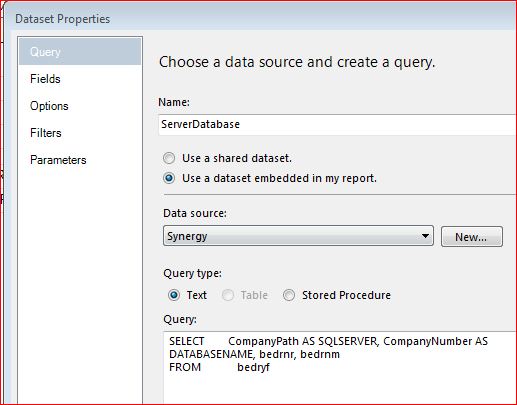
- Add datasource to the database with all SQL Server\databases. In my example named: Synergy
- Add a embedded dataset to retrieve SQL Server and Database information.

- Configure the available values for the report parameters: ServerName and DatabaseName.

- Add all datasets and report items to your report.
- Test your report using the 'hard coded' connection string.
- If everything works fine, change the 'hard coded' connection string with next expression
="data source=" & Parameters!ServerName.Value & ";initial catalog=" & Parameters!DatabaseName.Value

- Run the report and select a value for the report parameters ServerName and DatabaseName


Enjoy it.


